> ## Documentation Index
> Fetch the complete documentation index at: https://docs.afriex.com/llms.txt
> Use this file to discover all available pages before exploring further.
# Checkout Flow Guide
> Step-by-step guide for the hosted Afriex Checkout payment experience
**Coming soon.** Hosted checkout is not yet generally available in production, but you can already try it end-to-end in the **sandbox/staging** environment today. Use sandbox to validate your integration while we finish the production rollout, which we expect to ship in the coming weeks.
## Overview
Afriex Checkout is a hosted payment experience that allows customers to complete payments using supported methods such as Card, Bank Transfer, and Mobile Money.
After a merchant [creates a checkout session](/api-reference/endpoint/checkout-sessions/create) through the API, the customer is redirected to the hosted checkout page to complete payment.
## Before you begin
A checkout session must already be created by the merchant or application. The hosted checkout page displays the payment amount, available payment methods, session timer, and payment instructions.
## Select a payment method
The customer sees the available payment methods on the checkout page.
Available methods may include:
* Card
* Bank Transfer
* Mobile Money
 The customer:
* Reviews the payment amount
* Selects a preferred payment method
The checkout session also displays an expiration timer.
After selecting a method, the customer follows one of the payment paths below.
## Pay by card
When Card is selected, Afriex displays a secure card payment form for the payment.
The customer:
* Reviews the payment amount
* Selects a preferred payment method
The checkout session also displays an expiration timer.
After selecting a method, the customer follows one of the payment paths below.
## Pay by card
When Card is selected, Afriex displays a secure card payment form for the payment.
 The page displays:
* Amount to pay
* Card number field
* Card expiry field
* CVC field
* Cardholder name field
* Billing address fields
* Pay button
Customer actions:
1. Enter the card number.
2. Enter the card expiry date and CVC.
3. Enter the cardholder name and billing address.
4. Click **Pay**.
5. Complete any card authorization prompt if required.
Afriex confirms the card payment and updates the checkout page automatically.
## Pay by bank transfer
When Bank Transfer is selected, Afriex displays one-time bank transfer details for the payment.
The page displays:
* Amount to pay
* Card number field
* Card expiry field
* CVC field
* Cardholder name field
* Billing address fields
* Pay button
Customer actions:
1. Enter the card number.
2. Enter the card expiry date and CVC.
3. Enter the cardholder name and billing address.
4. Click **Pay**.
5. Complete any card authorization prompt if required.
Afriex confirms the card payment and updates the checkout page automatically.
## Pay by bank transfer
When Bank Transfer is selected, Afriex displays one-time bank transfer details for the payment.
 The page displays:
* Amount to pay
* Bank name
* Account number
* Account name
* Copy account number action
* Payment instructions
* Session expiration timer
Customer actions:
1. Open a banking app, internet banking, or USSD.
2. Transfer the exact amount shown.
3. Return to the checkout page.
4. Wait for automatic payment confirmation.
The customer must send the exact amount shown. Incorrect amounts may cause delays or require a refund.
## Pay by mobile money
When Mobile Money is selected, the customer enters their mobile money details.
The page displays:
* Amount to pay
* Bank name
* Account number
* Account name
* Copy account number action
* Payment instructions
* Session expiration timer
Customer actions:
1. Open a banking app, internet banking, or USSD.
2. Transfer the exact amount shown.
3. Return to the checkout page.
4. Wait for automatic payment confirmation.
The customer must send the exact amount shown. Incorrect amounts may cause delays or require a refund.
## Pay by mobile money
When Mobile Money is selected, the customer enters their mobile money details.
 The page displays:
* Network selector
* Account holder name field
* Mobile money phone number field
* Pay now button
Customer actions:
1. Select a mobile money network.
2. Enter the account holder name.
3. Enter the mobile money phone number.
4. Click **Pay now**.
Afriex sends a payment authorization prompt to the customer's phone.
### Approve the payment on your phone
After the customer clicks **Pay now**, the checkout page enters a pending state while waiting for payment authorization.
The page displays:
* Network selector
* Account holder name field
* Mobile money phone number field
* Pay now button
Customer actions:
1. Select a mobile money network.
2. Enter the account holder name.
3. Enter the mobile money phone number.
4. Click **Pay now**.
Afriex sends a payment authorization prompt to the customer's phone.
### Approve the payment on your phone
After the customer clicks **Pay now**, the checkout page enters a pending state while waiting for payment authorization.
 The customer:
* Checks their phone
* Approves the mobile money payment prompt
* Waits for the checkout page to update automatically
The session timer continues while Afriex waits for confirmation from the network or payment provider.
## Payment outcomes
Regardless of the payment method, the checkout session ends in one of two outcomes.
### Successful payment
When payment is confirmed, the customer sees a success message.
The customer:
* Checks their phone
* Approves the mobile money payment prompt
* Waits for the checkout page to update automatically
The session timer continues while Afriex waits for confirmation from the network or payment provider.
## Payment outcomes
Regardless of the payment method, the checkout session ends in one of two outcomes.
### Successful payment
When payment is confirmed, the customer sees a success message.
 At this stage:
* The payment has been confirmed
* The customer sees a success confirmation
* The customer is redirected back to the merchant's redirect URL automatically
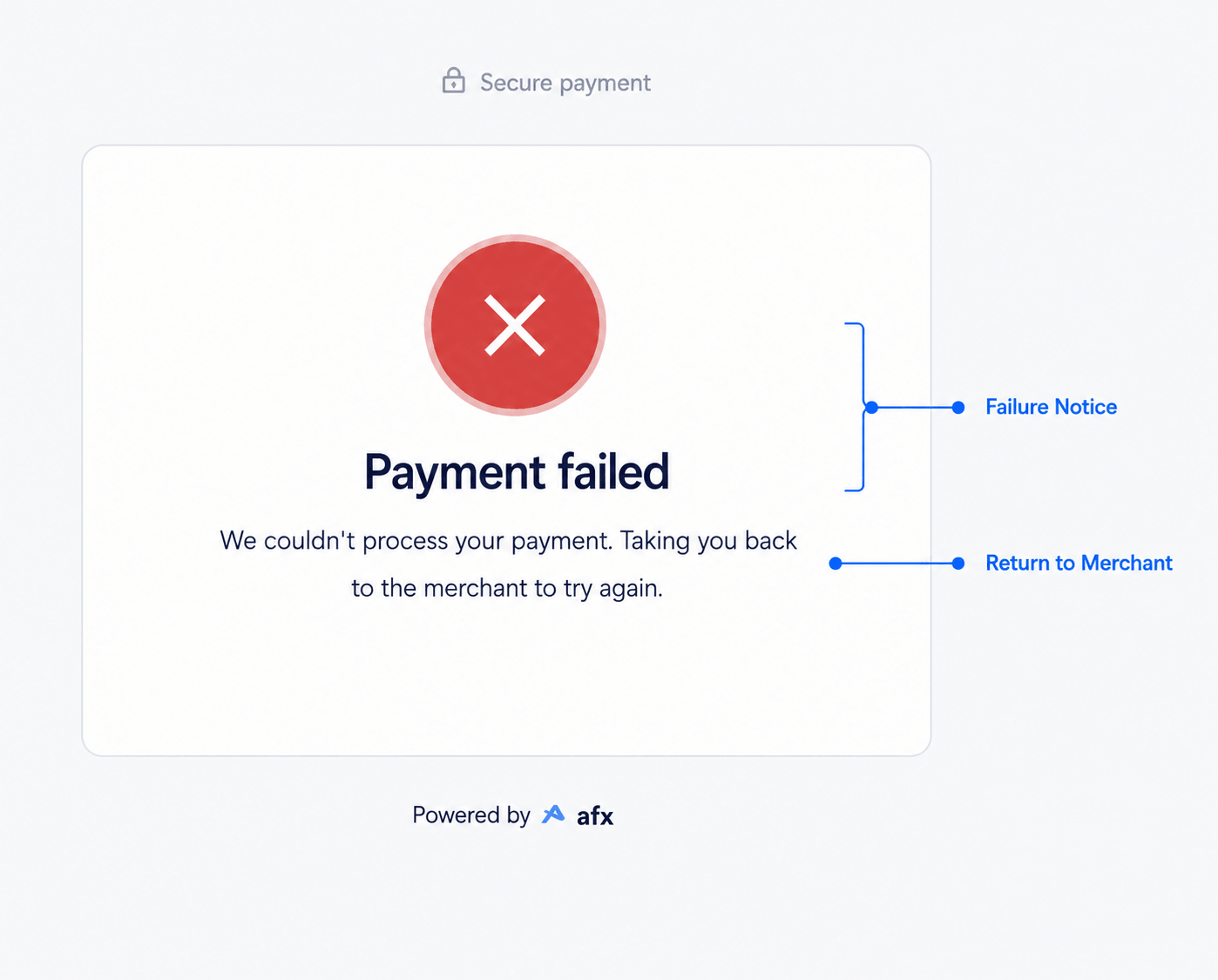
### Failed payment
If payment cannot be confirmed, the customer sees a failed payment screen.
At this stage:
* The payment has been confirmed
* The customer sees a success confirmation
* The customer is redirected back to the merchant's redirect URL automatically
### Failed payment
If payment cannot be confirmed, the customer sees a failed payment screen.
 Possible failure reasons include:
* Declined or failed card payment
* Incorrect transfer amount
* Declined mobile money authorization
* Expired checkout session
* Network or payment provider issue
* Payment could not be confirmed
The customer may:
* Contact support
* Return to the merchant
* Retry payment if the merchant provides a new checkout session
## Checkout session expiration
Checkout sessions have an expiration timer. Customers should complete payment before the session expires.
If the session expires, the customer may need to restart checkout or request a new checkout session.
## Redirect behavior
After a successful or failed payment, Afriex redirects the customer back to the merchant application depending on the checkout configuration.
When payment is confirmed, Afriex also fires a `CHECKOUT_SESSION.CREATED` [webhook](/api-reference/endpoint/webhooks/introduction) to your configured callback URL, so your system can reconcile the payment independently of the redirect.
## Notes for merchants
* Customers should pay the exact amount shown on the checkout page.
* Checkout sessions should be tested in sandbox before going live.
* The redirect URL should be configured correctly so customers return to the merchant application after payment.
## Related
Create a hosted checkout session and get the `checkoutUrl` to redirect your customer to.
Receive real-time notifications when a checkout session is completed.
Possible failure reasons include:
* Declined or failed card payment
* Incorrect transfer amount
* Declined mobile money authorization
* Expired checkout session
* Network or payment provider issue
* Payment could not be confirmed
The customer may:
* Contact support
* Return to the merchant
* Retry payment if the merchant provides a new checkout session
## Checkout session expiration
Checkout sessions have an expiration timer. Customers should complete payment before the session expires.
If the session expires, the customer may need to restart checkout or request a new checkout session.
## Redirect behavior
After a successful or failed payment, Afriex redirects the customer back to the merchant application depending on the checkout configuration.
When payment is confirmed, Afriex also fires a `CHECKOUT_SESSION.CREATED` [webhook](/api-reference/endpoint/webhooks/introduction) to your configured callback URL, so your system can reconcile the payment independently of the redirect.
## Notes for merchants
* Customers should pay the exact amount shown on the checkout page.
* Checkout sessions should be tested in sandbox before going live.
* The redirect URL should be configured correctly so customers return to the merchant application after payment.
## Related
Create a hosted checkout session and get the `checkoutUrl` to redirect your customer to.
Receive real-time notifications when a checkout session is completed.